Two-Factor Authentication (2FA) adds an extra layer of security to your account. When signing in, you are required to enter a 6-digit code from an authenticator app in addition to your password.
Requirement: An authenticator app of your choice - e.g. Google Authenticator, Authy or Microsoft Authenticator.
Activate 2FA
Open Profile -> Security and click Activate 2FA in the Two-Factor Authentication card. A 3-step wizard opens.
Step 1: Save backup codes
Save the listed backup codes in a safe place. They let you sign in without your authenticator app if you lose access to the device. We recommend keeping a physical copy rather than a digital one.
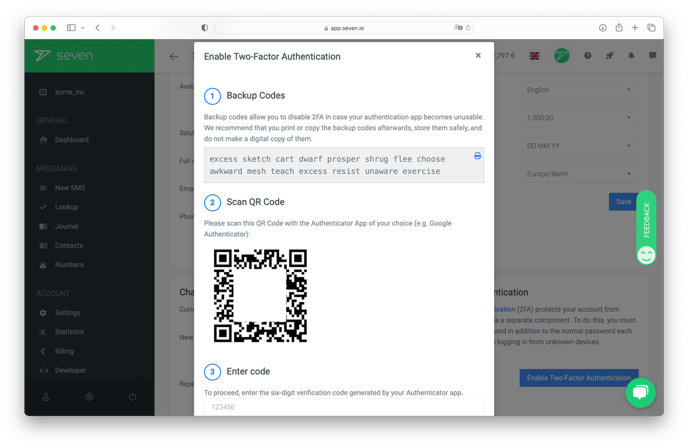
Confirm via the I have saved the backup codes checkbox and click Next.
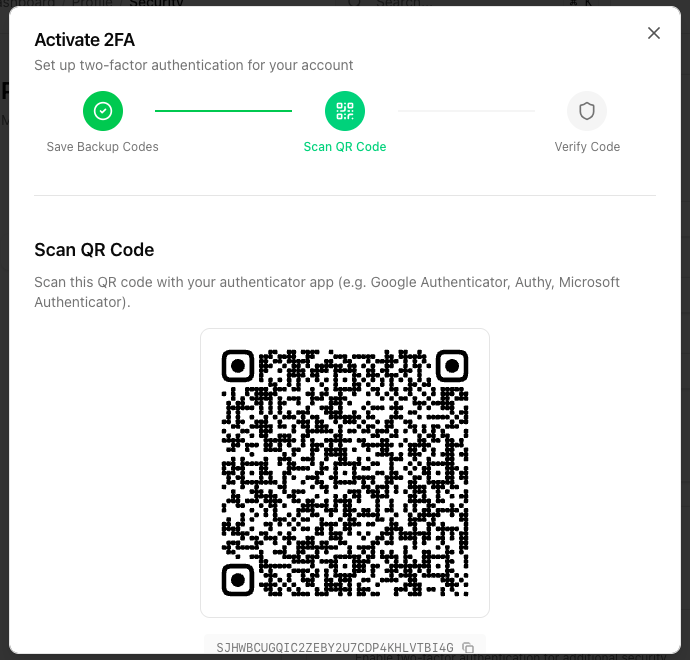
Step 2: Scan QR code
Scan the QR code with your authenticator app. Alternatively, copy the secret key shown below the QR code manually.
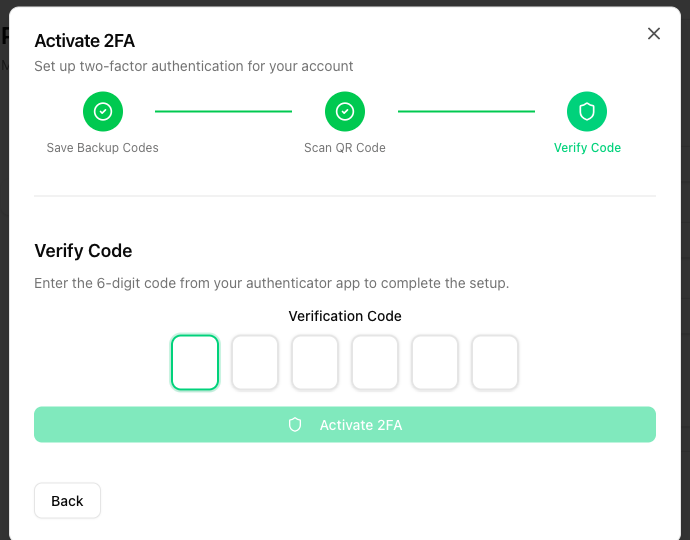
Step 3: Verify code
Enter the 6-digit code from your authenticator app and click Activate 2FA.
What if I lose my authenticator device?
If you lose access to your authenticator device, you can sign in with one of the backup codes. On the 2FA prompt at login, click Use backup code and enter a backup code.