Instead of an email address and password, you can also sign up and log in to seven with your Google, GitHub or Microsoft account. Your identity provider handles the authentication - no separate seven password required. For Microsoft, work and school accounts (Microsoft Entra ID) are supported, not personal Microsoft accounts.
Signing up
On the sign-up page, choose Google, GitHub or Microsoft below the form and sign in with the respective provider.
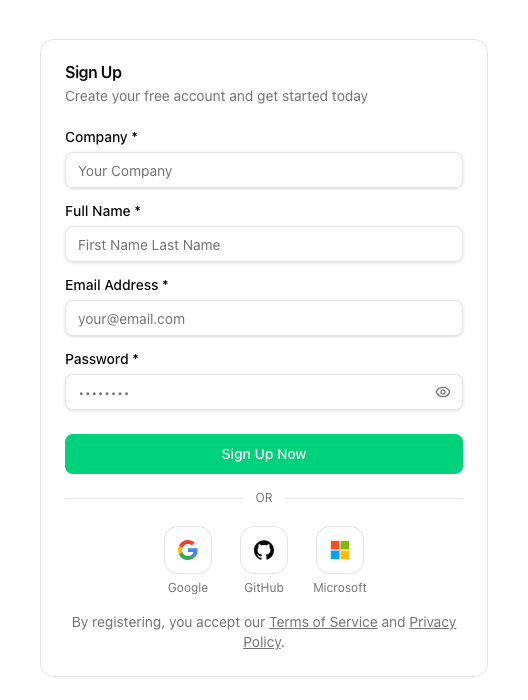
All that is left is your company name - we take your email address and name from the provider. After submitting, your account is ready to use right away.
In some cases we additionally send you a confirmation code by email, for example when your Microsoft account cannot prove a verified email domain. Enter the code to complete the sign-up.
Logging in
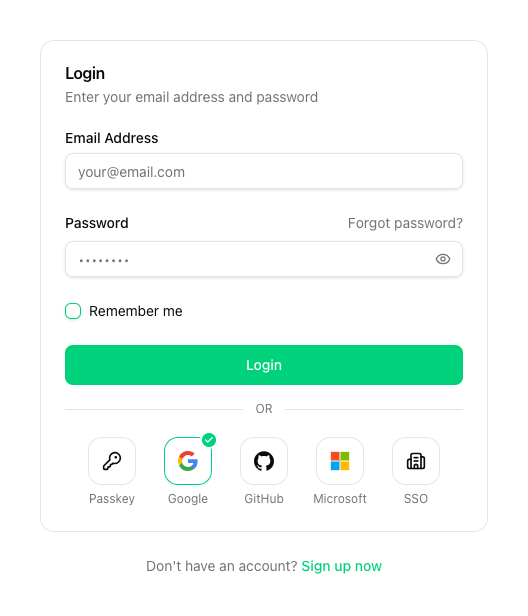
You will find the same options below the login form on the login page. A green checkmark marks the method you last logged in with - so you never have to guess how your account was created.
If you have set up two-factor authentication, the second factor is also required when logging in through a provider.
If your company has set up and enforced single sign-on with SAML for your email domain, logins via Google, GitHub or Microsoft are rejected. In that case, sign in using the SSO button below the login form.
Connecting an existing account
Already have a seven account with a password? There are two ways:
- Automatically: If the verified email address of your Google, GitHub or Microsoft account matches the email address of your seven account, the provider is connected automatically on your first login. No second account is created.
- Manually: Under Profile -> Security in the Connected accounts section, you can connect or disconnect providers at any time.
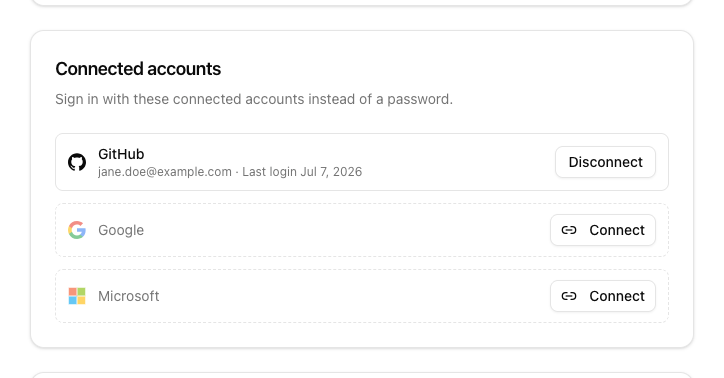
If you see a message during login saying that an account with your email address already exists, log in with your password first and then connect the provider in the security settings. This happens when the provider cannot confirm your email address as verified.
Setting a password and disconnecting providers
Accounts created through a provider start without a password. Under Profile -> Security you can set a password at any time and then also log in the classic way with email address and password.
When disconnecting a provider, note: your last remaining login method cannot be removed. Set a password (or add a passkey) first before disconnecting the only connected provider.