Passkeys are a modern alternative to signing in with email address and password. Instead of typing a password, you confirm the login directly on your device - via fingerprint, face recognition or device PIN. Passkeys are phishing-resistant because they are bound to the seven domain and cannot be used on fake websites.
Setting up a passkey
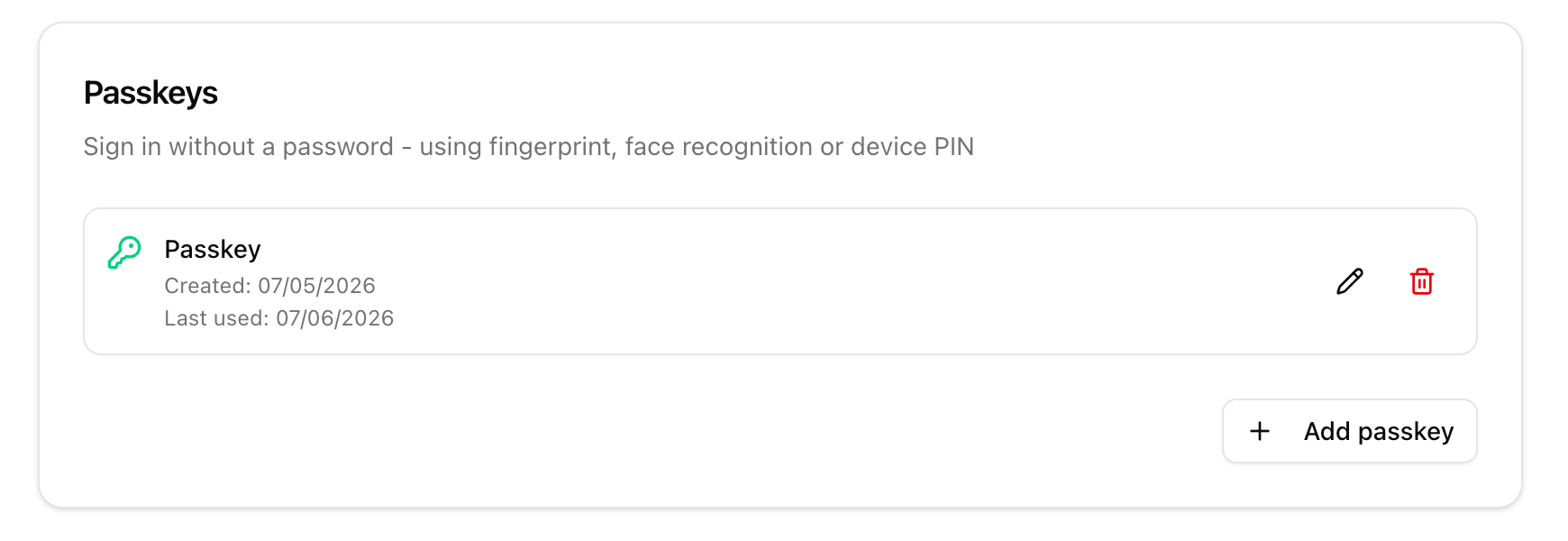
Open Profile -> Security and click Add passkey in the Passkeys section.
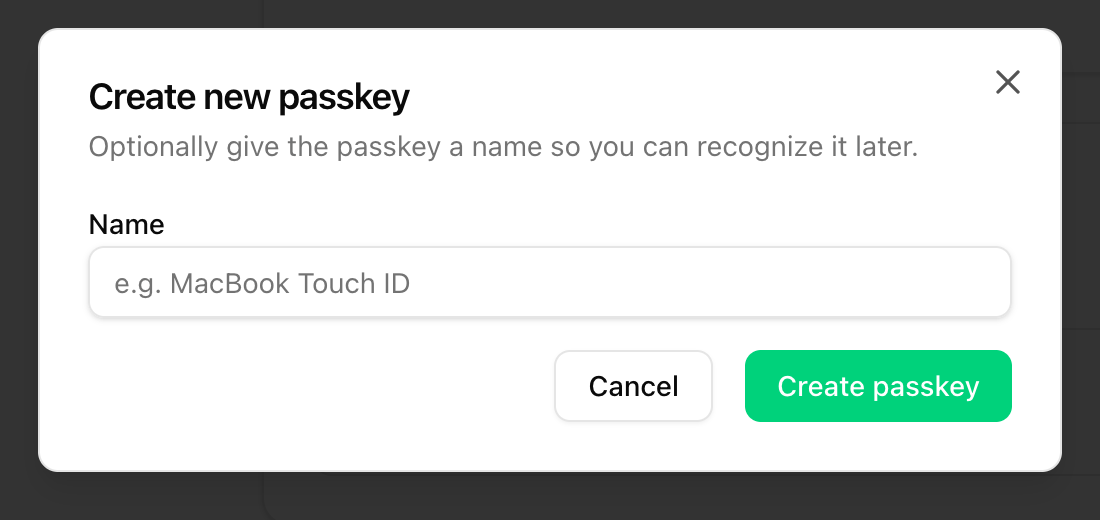
Optionally give the passkey a name (e.g. "MacBook Touch ID") so you can recognize it later, then click Create passkey. Your browser or operating system will open its dialog - confirm with fingerprint, face recognition or device PIN.
Notes:
- Each account member can register up to 10 passkeys - e.g. for notebook, smartphone and password manager.
- Only one passkey can be registered per device or password manager.
- Depending on the provider, the passkey is automatically synced to your other devices (e.g. via iCloud Keychain or Google Password Manager).
Signing in with a passkey
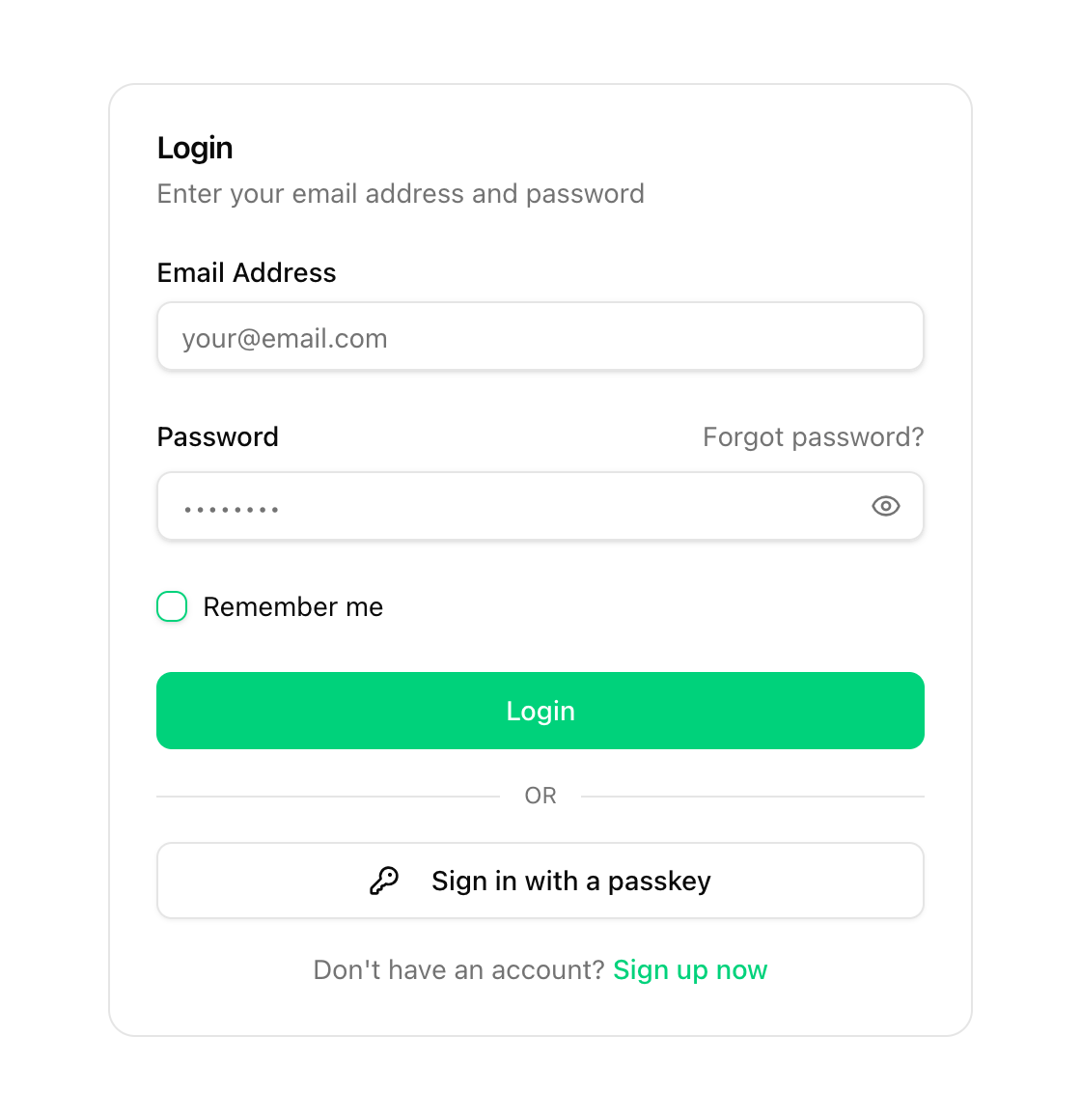
On the login page, click Sign in with a passkey. Your browser shows the available passkeys - select the desired account and confirm the login on your device. No email address or password is required.
Is a code still requested when 2FA is enabled?
No. When signing in with a passkey, two-factor authentication is skipped - even if 2FA is enabled or enforced for the account. A passkey already covers both factors: possession of the device and confirmation via biometrics or PIN. An additional 2FA code would not increase security any further.
For the classic login with email address and password, your 2FA setting remains unchanged.
Managing passkeys
Under Profile -> Security you can see all registered passkeys including creation date and last use. Use the pencil icon to rename a passkey and the trash icon to remove it. After removal, signing in with this passkey is no longer possible - also delete it on your device or in your password manager afterwards.
Requirements
Passkeys work with all common up-to-date browsers and operating systems (macOS/iOS with Touch ID or Face ID, Windows with Windows Hello, Android, and popular password managers such as 1Password or Bitwarden). If your browser does not support passkeys, the dashboard displays a corresponding notice.