Schedule a message
Click New message to open the Send Message dialog. Fill in recipient, sender and message as usual, then expand Send Time in the right panel and pick Send later. A date/time picker appears - choose when the SMS should go out. The send button changes from Send to Schedule.
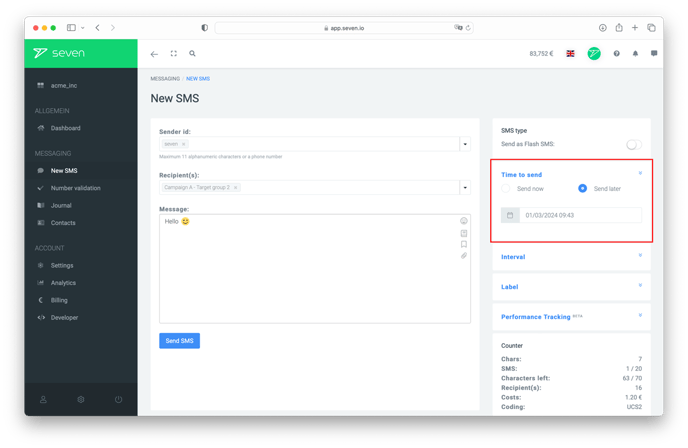
This is useful when you want to reach customers at the right moment without having to remember to send the SMS yourself - for example reminders or perfectly timed campaigns.
View and delete scheduled messages
Scheduled messages appear under Journal -> Sent Messages with their scheduled timestamp. To cancel a scheduled SMS before it goes out, open the entry there and delete it - it will not be sent.