Using placeholders
To personalize your SMS, click New message and use the bookmark icon in the message toolbar to open the Placeholders dropdown. Pick a placeholder to insert it at the cursor position.
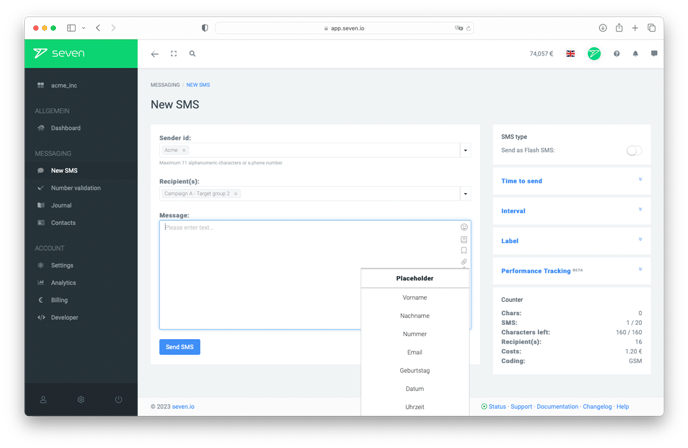
By default you can pick from First Name, Last Name, Full Name, Mobile Number, Landline Number, Email, Address, Postal Code, City, Birthday, Date and Time. If you insert First Name, the individual first name of each recipient is filled in automatically when the SMS is sent.
The system can only insert a value if you have stored that value for the recipient. The date of birth, for example, is only inserted if you have entered it on the contact card. You can use several placeholders in a single message.
If a placeholder has no value for a recipient, a space character is sent in its place. Make sure you enter your customer data correctly - if your customer's first name is misspelled, personalization works against you.
Custom placeholders via custom fields
You can create your own placeholders by adding a custom field on the contact card.