Preparing Your CSV File
If you want to import many contacts at once, you can do so using a CSV file. The file should be structured so that there is one piece of information per column - one column each for first name, last name, mobile number, email address, and so on. If the first row contains the column names, you can keep it: the next step lets you flag it as a header row.
Upload your CSV
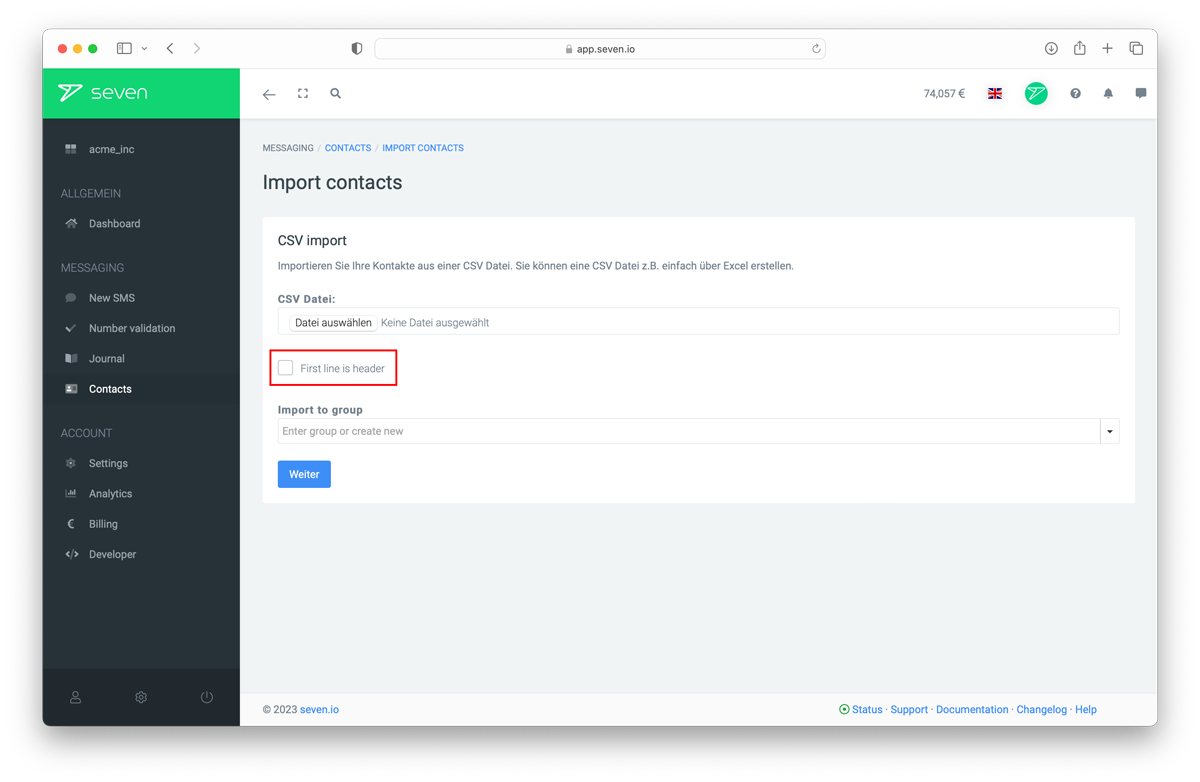
In the dashboard go to Contacts and click More -> Import. Drop your CSV file into the upload area or click to select it. Leave CSV contains header row enabled if your first row holds the column names, then click Next.
Map the Columns
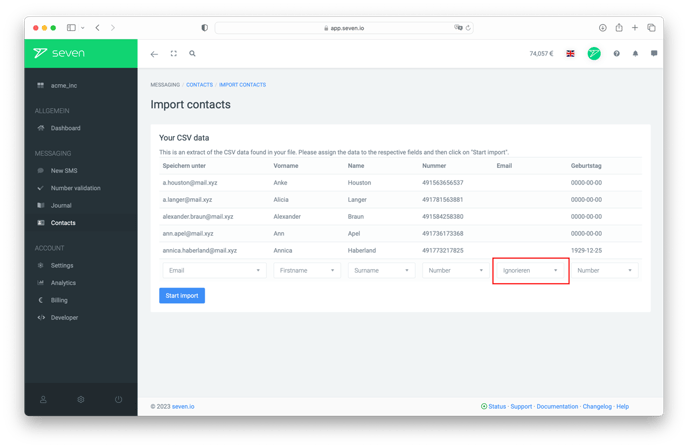
In the next step seven shows your CSV columns next to a few example values from your file and asks you to map each one to a contact field (First Name, Last Name, Mobile Number, Email, ...). Optionally pick a group under Import to group to assign every imported contact to it. Set Map to to Do not import for any columns you don't need. Click Start Import to start the import.