Spending limits let you define how much your account may spend per day and per month at most. This protects you against unexpected costs, for example when a faulty integration sends messages in a loop or an API key is misused.
By default, no limit is set.
Independently of spending limits, you can also cap the cost of individual SMS, e.g. with a maximum price per SMS part. See SMS pricing for details.
Setting limits
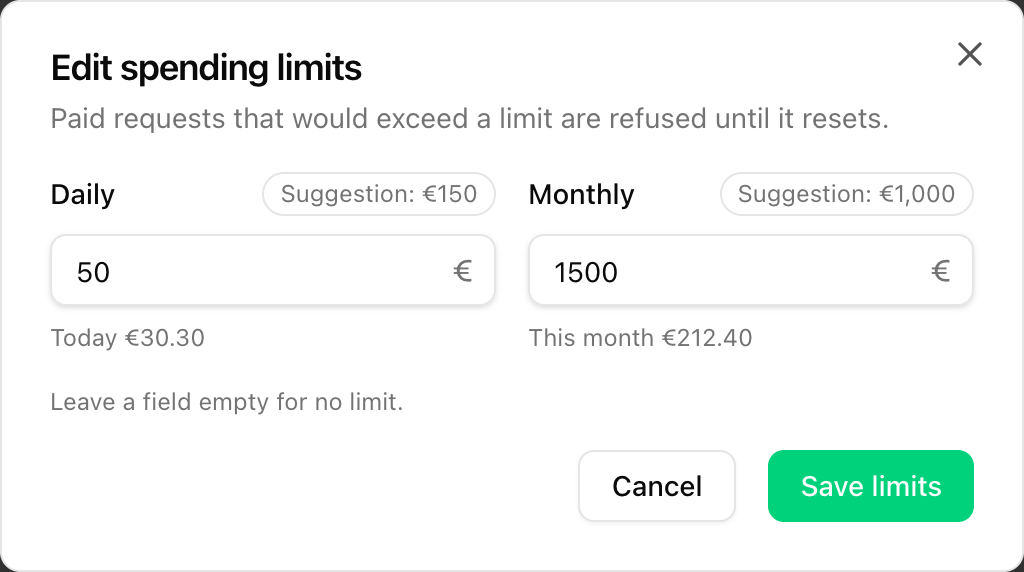
Open Billing and click Edit limits in the Spending limits card. The dialog has two fields:
- Daily: limit per day
- Monthly: limit per calendar month
The amounts are in your account currency. If you leave a field empty, there is no limit for that period. The daily limit cannot be higher than the monthly limit. Confirm with Save limits.
Below each field you can see how much you have already spent in the current period (Today ... or This month ...). If you had any spend in the last 30 days, a suggestion (Suggestion: ...) is shown as well, which you can apply with a click:
- Daily: three times your busiest day
- Monthly: three times your spend over the last 30 days
Both suggestions are rounded.
Keeping track of your spend
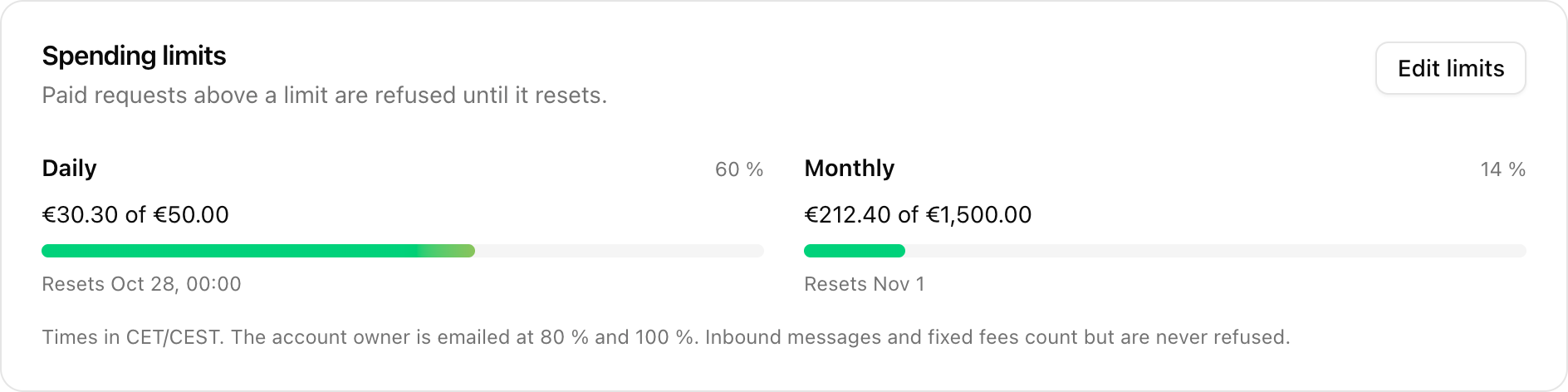
For each period, the Spending limits card shows your spend so far against the limit as a progress bar: green, yellow from around 80 % and red at 100 %. It also shows when the period resets:
- the daily limit at midnight
- the monthly limit on the 1st of the month
Both resets follow CET/CEST.
The account owner receives an email as soon as 80 % and as soon as 100 % of a limit is reached, each at most once per period.
What happens when a limit is reached
If a paid request would exceed a limit, it is refused until the limit resets. This applies to:
- outgoing SMS, RCS and WhatsApp messages (the API responds with return code
501) - lookups
- voice calls
- buying new phone numbers
The following costs count towards the limit but are never refused:
- inbound messages
- recurring fees such as phone number rentals, and other fixed fees
- costs that have already arisen, e.g. the minutes of a call that has already taken place
Such costs can therefore take you above a limit.
To continue right away after reaching a limit, raise or remove the limit via Edit limits.
Subaccounts
Each account sets its own limits, including each subaccount. The limits of a main account do not apply to its subaccounts. To cap the spend of a subaccount, set the limits in that subaccount.